Add a Jama Connect Webhooks subscription (admin)
You can add a subscription in Jama Connect Interchange to register a webhook URL, as well as send selected notifications from your Jama Connect instance to that URL.
Important considerations
Adding a subscription automatically registers the webhook URL. You don’t need to complete a separate registration step.
Each connected service can have multiple subscriptions.
A webhook URL can be associated with only one subscription.
The signature key appears only after you add the subscription. Copy and store it securely.
To add a subscription:
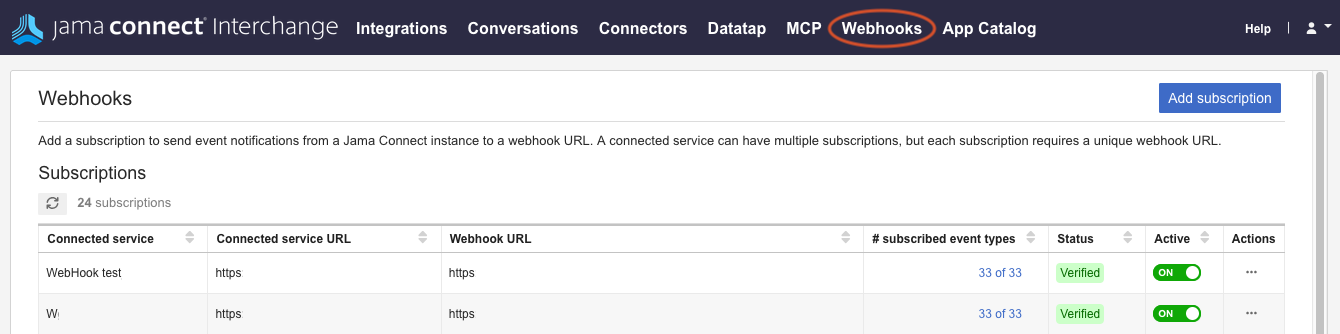
In the Jama Connect Interchange header bar, select Webhooks.
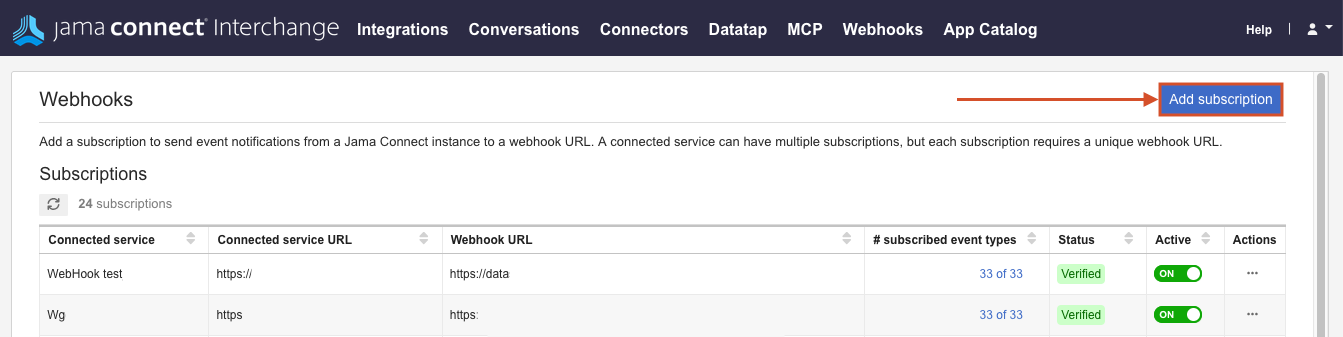
On the page that opens, select Add subscription.
In the window that opens:
Select a connected service.
Enter the Webhook URL that will receive notifications.
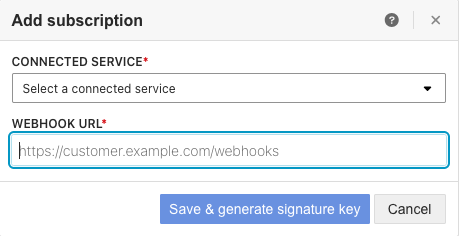
Select Save & generate signature key.
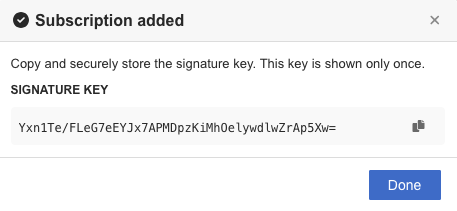
In the Subscription added window, copy the signature key, then select Done.
Important
Copy the signature key, so you can store it securely and use it to validate signed webhook events.
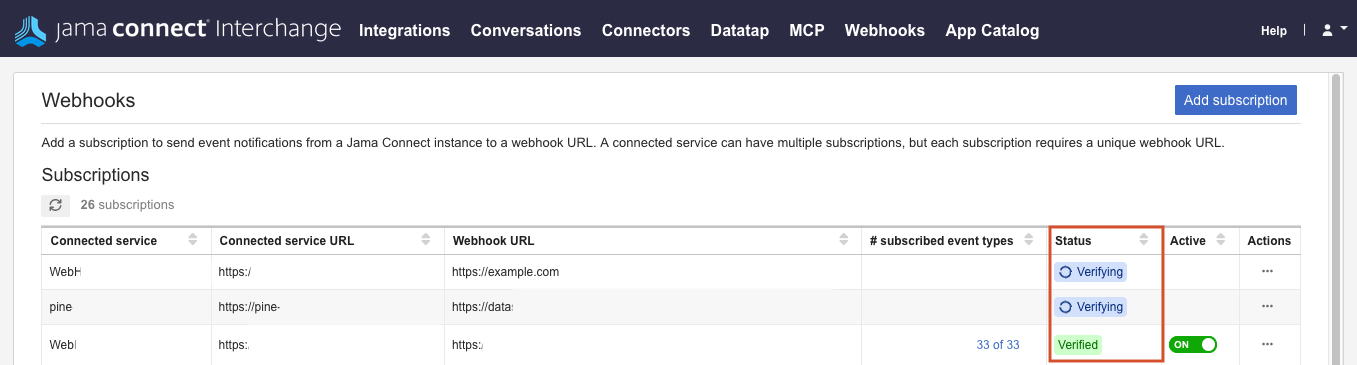
The subscription appears in the Subscriptions table with the status of: Verifying, Verified, or Failed.