Jama Connect Interchange Help

Jira troubleshooting

Question

Answer

I created a Jama Connect to Jira integration and ran the first sync, but now I need to add another field mapping to the integration. How do I do this without overwriting any data for the synced items.

  1. Turn off the integration.

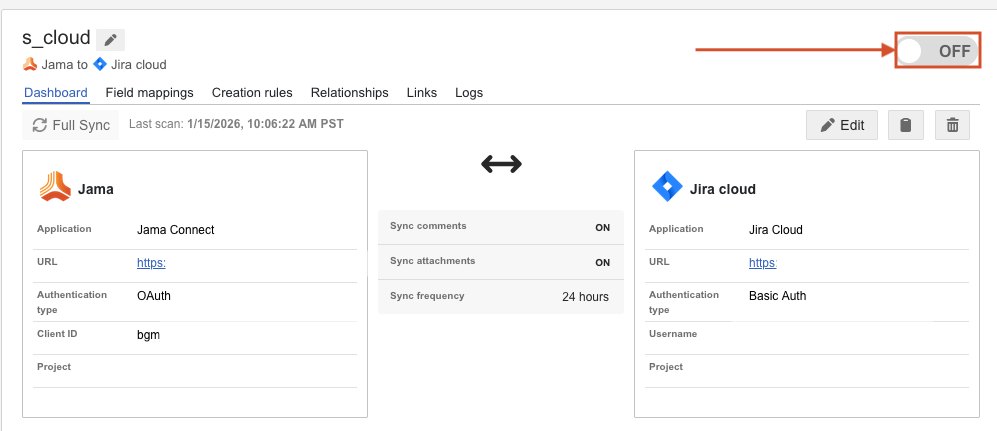
    The integration switch is toggled to OFF.
  2. Select the Field Mappings tab and add a row for the new field mapping.

    The Field Mappings tab displays two columns and multiple rows, one of which is highlighted.
  3. Use the drop-down lists to select the fields you want to map.

  4. Use the arrows to select the directionality for the field mapping.

  5. Select Save Changes.

  6. Turn the integration back ON.

  7. Select Full Sync.

  8. On the first page of the Full SYnc wizard, select Custom sync.

  9. On the second page of the wizard, select only the newly mapped field and its sync direction. For example, if all information for this field is currently stored in Jama Connect, select → so that information flows from Jama Connect to Jira when the custom sync is run.

  10. On the final page of the wizard, select Confirm to execute the sync.

For more information about using the Full Sync wizzard, see Perform a Full Sync for Jira integrations.

An item I created in Jama Connect isn’t automatically created in Jira, and vice versa.

If an item isn’t created in the destination system as expected, check the following:

  • Directionality — On the Integration dashboard, make sure the sync is configured to create items bidirectionally, and not one-way. For more information, see Integrations.

  • Item location — Make sure the item you created is located within the correct set (Jama Connect) or project (Jira). You can confirm the integration’s configured Jama Connect set and Jira project on the Integration dashboard.

  • Creation rules — Make sure no creation rules exclude this item from the sync. For more information, see Configure creation rules.

  • Lock status — If the item was created in Jama Connect, make sure that it isn’t currently locked by another user.

  • Link errors — On the Links tab, search for the item using its API ID. You can identify the API ID by looking at the item’s URL.

    For example: https://[jama-instance]/perspective.req#/items/

    If an item can’t be created because of an error or misconfiguration, the error message “Unable to create entity” is displayed for the item on the Links page. The most common cause for this error is that required fields in the destination system were left blank. Make sure those fields are mapped on the Field Mappings page and marked as required in the source system.

If a link is created between two items and one of the items is later deleted, how do I create a new link to the remaining item?

For example, I create a Requirement in Jama Connect, and a corresponding Epic is automatically created and linked in Jira. The Epic in Jira is deleted by mistake. How do I link the Jama Requirement to a new Jira Epic?

Create a new link if one of the original linked items is deleted.

  1. Turn off the integration.

    The integration switch is toggled to OFF.
  2. Go to the Links page and delete the old link for that item.

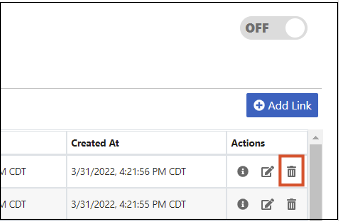
    On the Links page, the Delete icon is highlighted for an item's link.
  3. Turn the integration back ON.

  4. Select Full Sync.

A new item is created in the destination system and linked to the existing item in the source system.

How does Jama Connect Interchange handle conflicting changes in mapped fields? For example, if one user makes changes to an item in Jama Connect, and another user makes changes to the corresponding Jira item, how are changes reconciled when the sync is run?

When the Delta Sync runs, the most recent update for each field is honored. For example, in the following scenario where a Delta Sync is configured to run every 10 minutes:

  • The Jama Connect Name field is updated at 12:00.

  • The Jira Name and Description fields are updated at 12:02.

  • The Jama Connect Description field is updated at 12:05.

When Delta Sync runs, both items are updated with the Jira Name and the Jama Description.

Does Jama Connect Interchange support the X-ray plugin for Jira?

Interchange doesn't formally support the X-ray plugin for Jira. However, you can still sync X-ray issues from Jira to Jama Connect in practice. X-ray issues are viewed by the integration as normal Jira issues with added specialty plug-in fields. Using Interchange, you can sync the standard Jira fields included on the X-ray issue (such as Summary and  Description), but you can’t sync the specialty X-ray fields