Map Jama Connect fields to Jira fields
After you create a Jira integration, you must map your Jama Connect fields to the fields in Jira.
To configure field mappings for Jira:
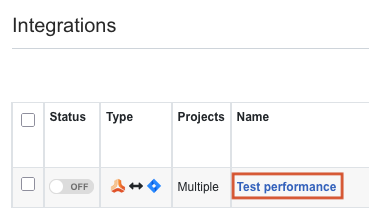
On the Integrations page, select the link for the integration you just created.
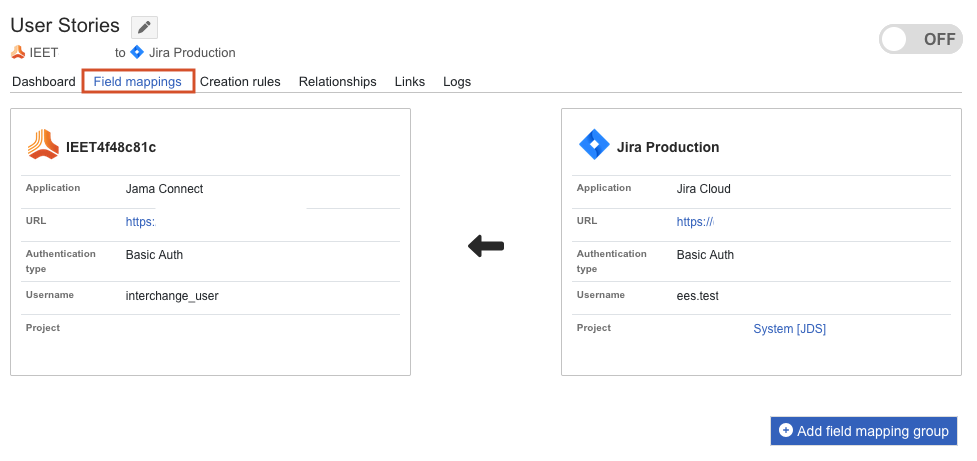
Select the Field Mappings tab.
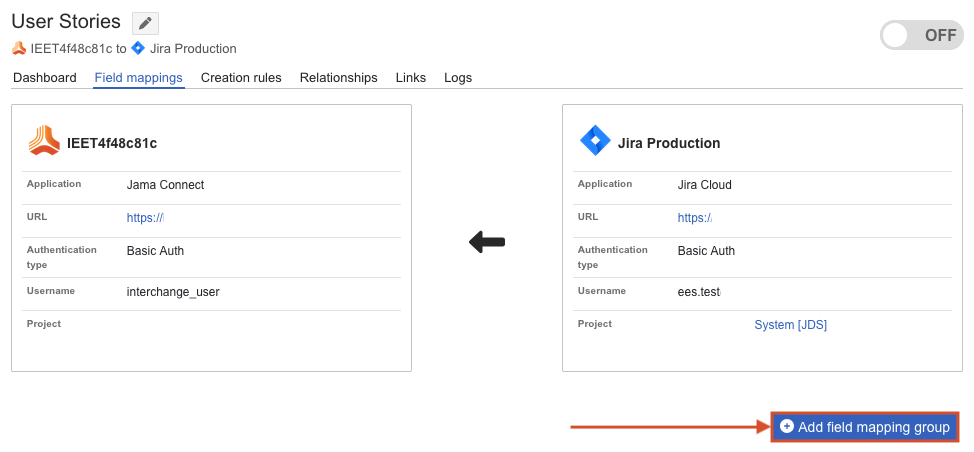
For each field mapping group you want to add, select Add field mappings group.
Important
Don't use the same Jama Connect item type or Jira issue type in more than one mapping group within an integration to avoid conflicts or duplicates when items are synced.
In the page that opens, complete the fields, then select Create.
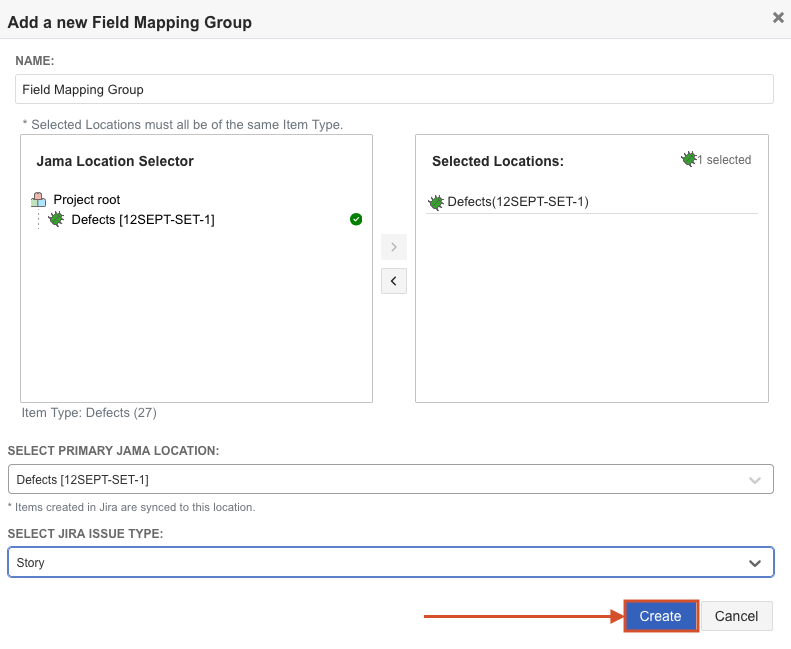
Name — Enter a descriptive name for the field mapping group.
Jama Location Selector — Select the Jama Connect sets or folders that you want to sync. All selected sets must use the same item type (for example, User Stories or Defects).
Select Jira Issue Type — Select the Jira issue type to sync with. When items are synced from Jama Connect to Jira, they are created in Jira using this issue type. When issues are synced from Jira to Jama Connect, only issues of this type are selected for sync.
The page closes and the new field mapping group is created.
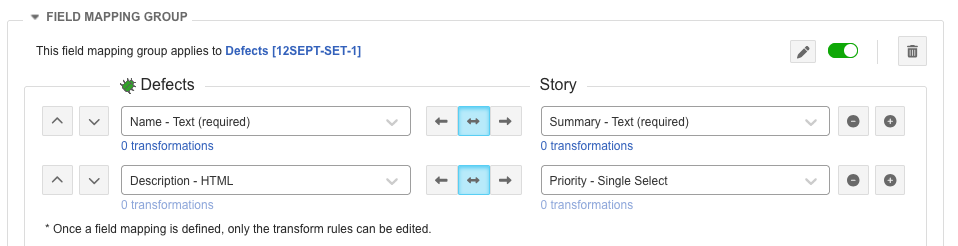
Using the drop-down lists, map the Jama Connect and Jira fields to each other. Begin with a few fields first (for example, Name and Description), then test the integration before adding more fields.
Important
A field appears in the Jira drop-down list only if you configure it to be displayed on both the “Create issue” and “Edit issue” screens for the Jira issue type. This requirement applies only to company-managed Jira projects.
You must map all required fields in the target system. For example, if Jira requires that the Summary field must be filled out to create the item, make sure that you map the Summary field. Required fields are labeled with (required) in the field mapping picklist.
Select Save.
Your Jama Connect fields are now successfully mapped to Jira fields.